There is a lot of information on the internet about the basics of Sitecore Search API crawlers, web crawlers, and push API connectors. But when I needed to configure an API crawler to index data for different sites, different locales, and with pagination support, I could not find what I was looking for. So I figured it out myself, and here is everything you need. You can copy and paste the code snippets directly into your Sitecore Search configuration.
Prerequisites
Before we start, I assume you already have an API endpoint that supports pagination and accepts a sitename parameter to return data for a specific site. Your API should handle pagination queries with page and pageSize parameters, and it should be able to filter results by site name. The API response should include the total number of items and a data array for the requested page.
Create API Crawler in Sitecore Search
The first step is to create an API crawler in Sitecore Search and configure the locales that you want to support. If you need help with the basics, you can check the official Sitecore documentation. After you create the crawler, make sure you configure all the locales that your multisite implementation needs.
Configure the Trigger
We will use a JavaScript trigger for this implementation. This makes maintenance much easier. If you read my other blogs, you know I like to keep things simple. This approach allows you to manage all your site and language configurations in one place. The best part is that when you need to add a new site to the index, you just need to add the site name to the sites array at the top of the code. That is all. No other configuration changes are needed.
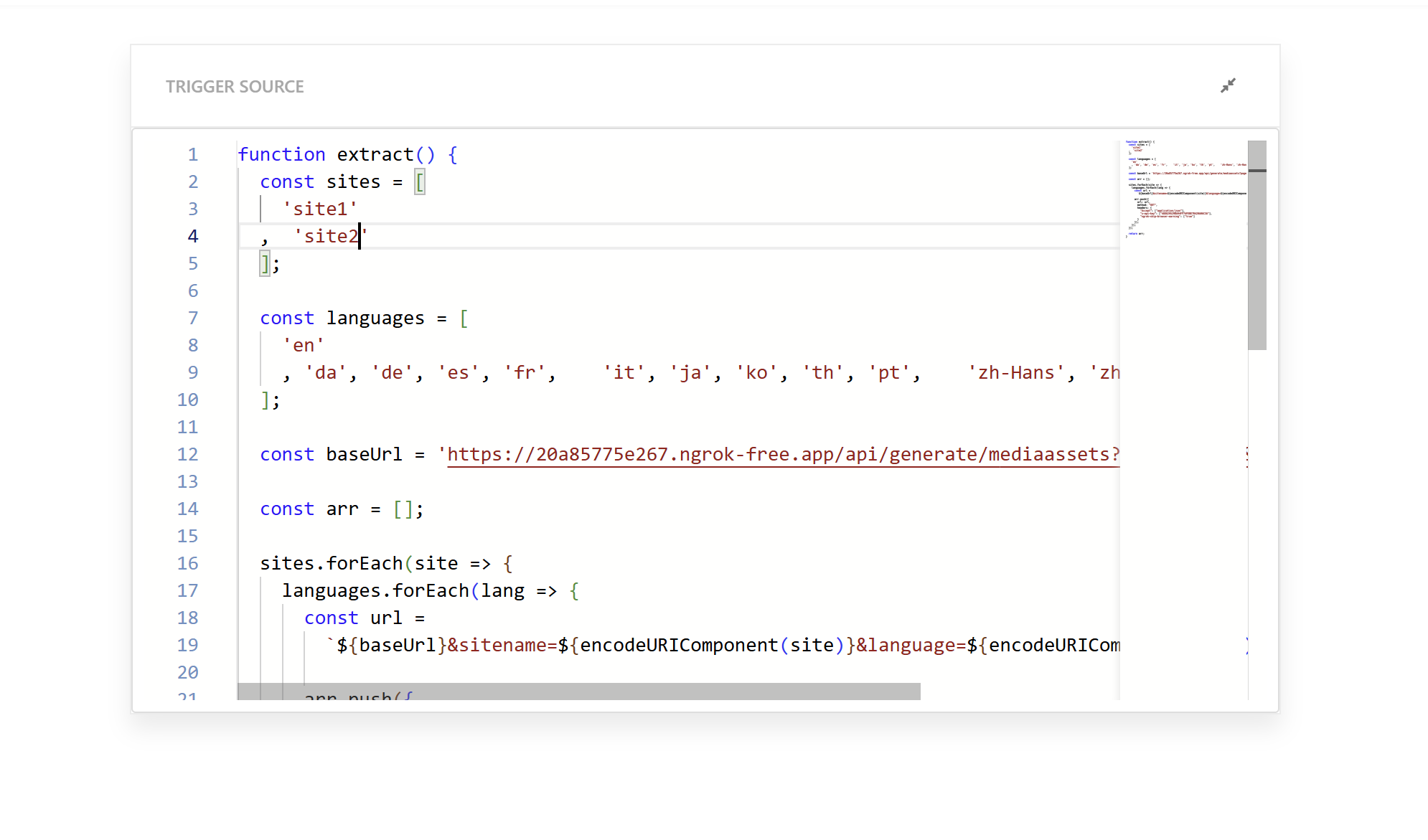
This JavaScript extractor creates the initial list of URLs that will be crawled. Here is the code:
function extract() {
  const sites = [
    'site1'
  ,  'site2'
  ];

  const languages = [
    'en'
    , 'da', 'de', 'es', 'fr',    'it', 'ja', 'ko', 'th', 'pt',    'zh-Hans', 'zh-Hant'
  ];

  const baseUrl = 'https://20a85775e267.ngrok-free.app/api/generate/mediaassets?pageSize=50&page=1';

  const arr = [];

  sites.forEach(site => {
    languages.forEach(lang => {
      const url =
        `${baseUrl}&sitename=${encodeURIComponent(site)}&language=${encodeURIComponent(lang)}`;

      arr.push({
        url: url,
        method: "GET",
        headers: {
          "Accept": ["application/json"],
          "x-api-key": ["48D829529BA94FF7AFEBE7B420A06C3A"],
          "ngrok-skip-browser-warning": ["true"]
        }
      });
    });
  });

  return arr;
}
The code structure is simple. The first array defines the site names that you want to include in the index. The second array contains all the language codes that you want to crawl. The base URL has a hardcoded page size and page=1. This is important because we want to trigger the API call for page 1 for each site and language combination. The function loops through all site and language combinations and creates request objects with the necessary headers. It returns an array of request objects that Sitecore Search will use to start the crawl.
Configure Locale Extractor
The locale extractor maps your Sitecore language codes to Sitecore Search locale codes. This ensures that your content is indexed with the correct locale information. This is very important when you work with multiple sites and languages.
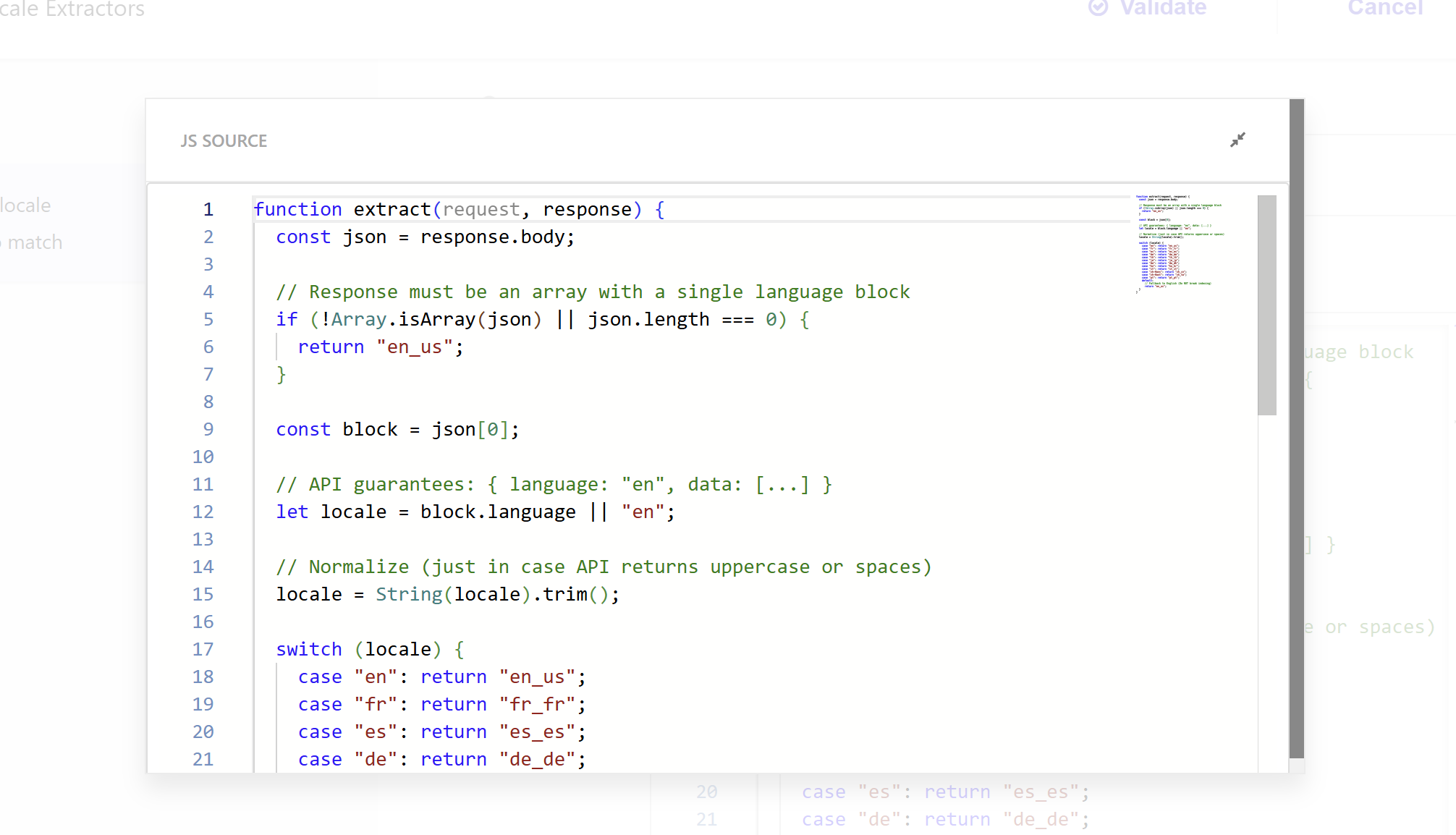
Here is the code that handles the language-to-locale mapping:
function extract(request, response) {
  const json = response.body;

  // Response must be an array with a single language block
  if (!Array.isArray(json) || json.length === 0) {
    return "en_us";
  }

  const block = json[0];

  // API guarantees: { language: "en", data: [...] }
  let locale = block.language || "en";

  // Normalize (just in case API returns uppercase or spaces)
  locale = String(locale).trim();

  switch (locale) {
    case "en": return "en_us";
    case "fr": return "fr_fr";
    case "es": return "es_es";
    case "de": return "de_de";
    case "th": return "th_th";
    case "ja": return "ja_jp";
    case "da": return "da_dk";
    case "ko": return "ko_kr";
    case "it": return "it_it";
    case "zh-Hans": return "zh_cn";
    case "zh-Hant": return "zh_tw";
    case "pt": return "pt_pt";
    default:
      // Fallback to English (Do NOT break indexing)
      return "en_us";
  }
}
This extractor reads the language code from your API response and maps it to the Sitecore Search locale format. I added error handling so that if the response structure is unexpected or a language code is not recognized, it defaults to English instead of breaking the indexing process.
Configure Request Extractor
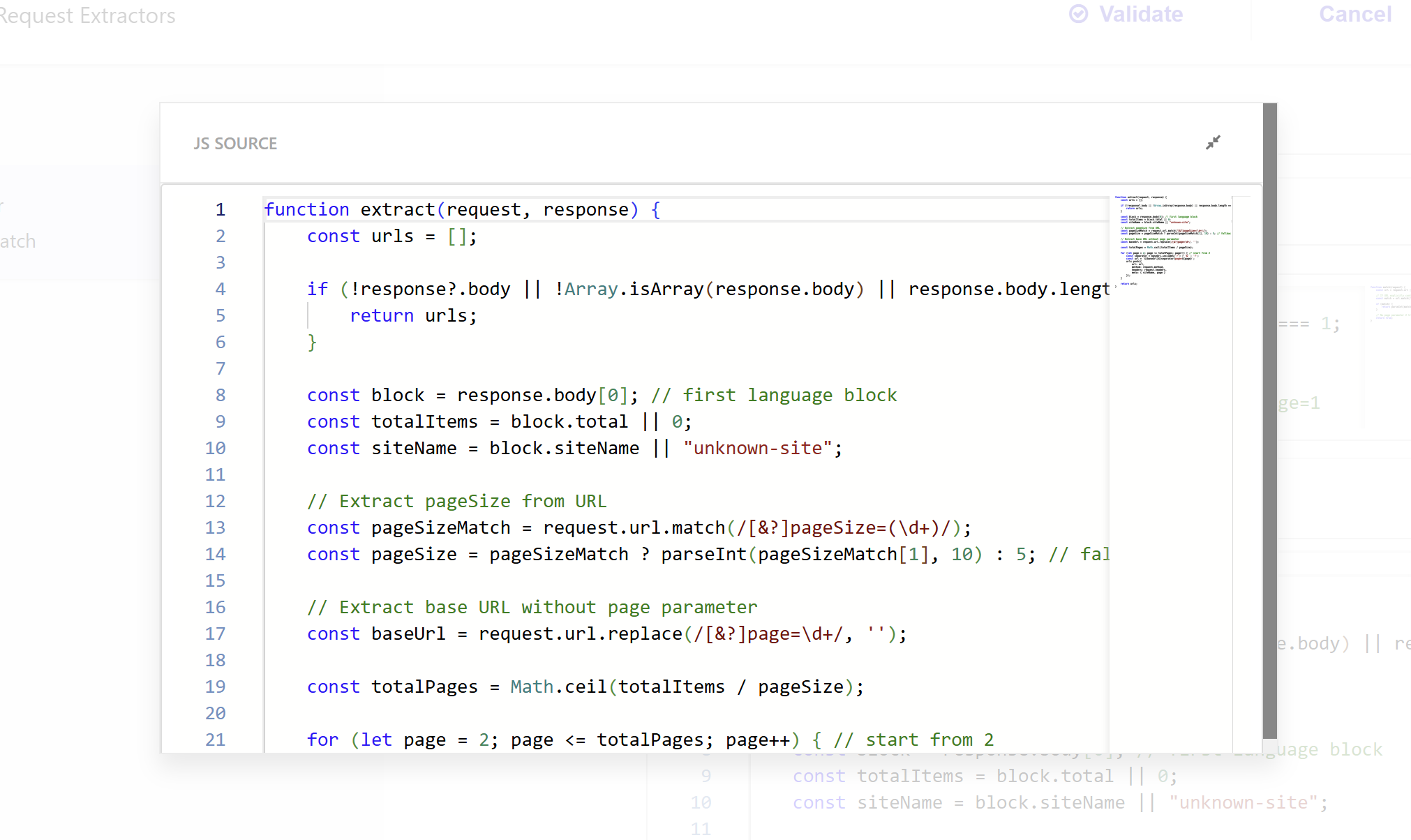
The request extractor performs additional operations after each request from the trigger is executed. Remember that the trigger JavaScript only generates URLs for page 1. The request extractor is responsible for discovering and generating URLs for all other pages based on the total number of items.
First, we need to configure the URL matching. In the "URLs to match" section, select JavaScript as the type.
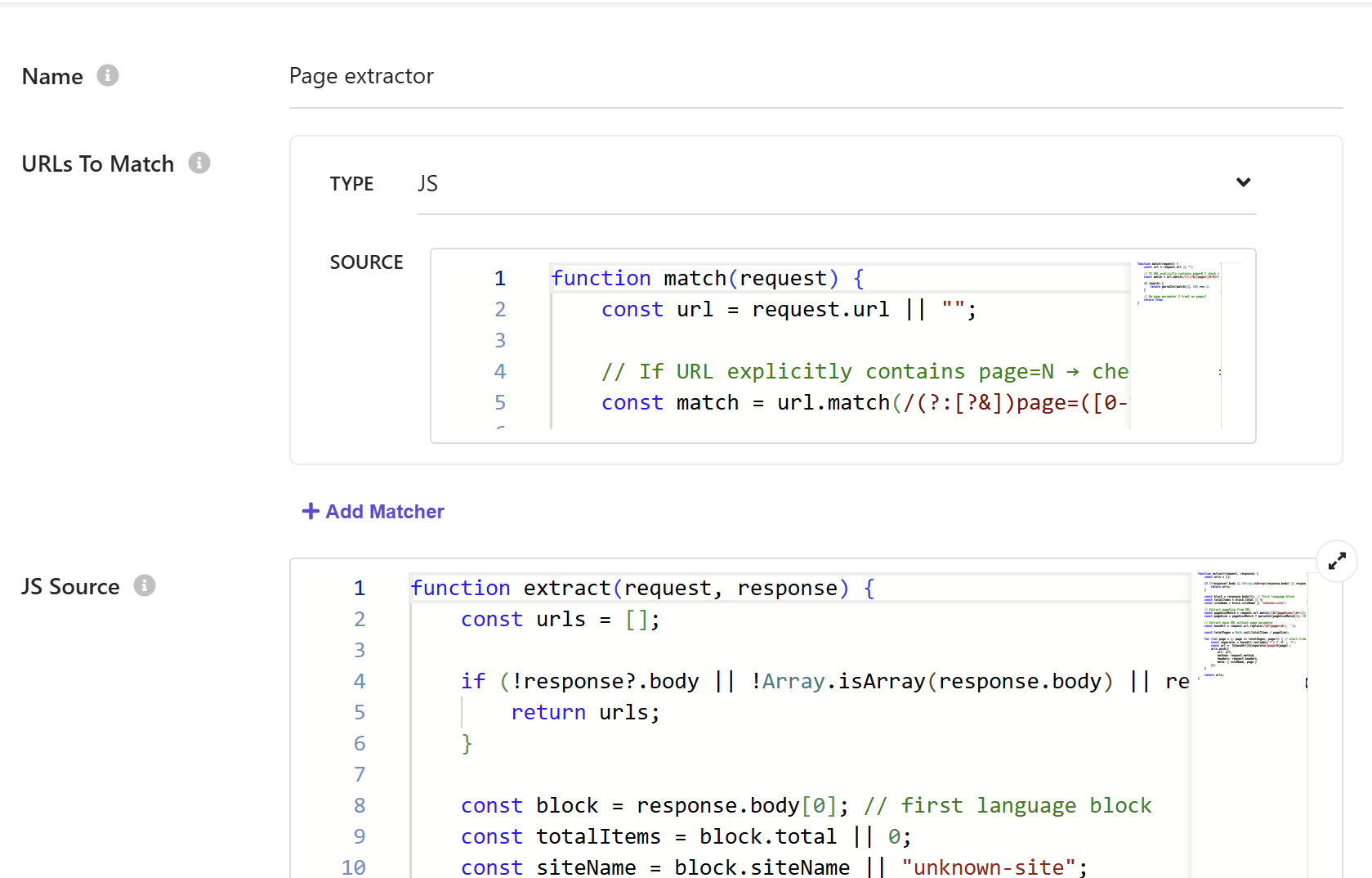
The match function ensures that the request extractor only processes the first page of results. This prevents it from running on pages 2, 3, and so on, which would cause unnecessary processing and could create duplicate URLs.
function match(request) {
    const url = request.url || "";

    // If URL explicitly contains page=N → check if N=1
    const match = url.match(/(?:[?&])page=([0-9]+)/);

    if (match) {
        return parseInt(match[1], 10) === 1;
    }

    // No page parameter → treat as page=1
    return true;
}
The extract function is triggered on the response from each API call from the initial trigger URLs. Since we are processing page 1 responses, we can extract the total number of items from the response, calculate how many pages we need based on the page size, and generate URLs for all remaining pages.
For example, if your API returns 200 items for a specific language and site combination, and your page size is 50, this request extractor will generate URLs for page 2, page 3, and page 4.
function extract(request, response) {
    const urls = [];

    if (!response?.body || !Array.isArray(response.body) || response.body.length === 0) {
        return urls;
    }

    const block = response.body[0]; // first language block
    const totalItems = block.total || 0;
    const siteName = block.siteName || "unknown-site";

    // Extract pageSize from URL
    const pageSizeMatch = request.url.match(/[&?]pageSize=(\d+)/);
    const pageSize = pageSizeMatch ? parseInt(pageSizeMatch[1], 10) : 5; // fallback to 5

    // Extract base URL without page parameter
    const baseUrl = request.url.replace(/[&?]page=\d+/, '');

    const totalPages = Math.ceil(totalItems / pageSize);

    for (let page = 2; page <= totalPages; page++) { // start from 2
        const separator = baseUrl.includes('?') ? '&' : '?';
        const url = `${baseUrl}${separator}page=${page}`;
        urls.push({
            url: url,
            method: request.method,
            headers: request.headers,
            meta: { siteName, page }
        });
    }

    return urls;
}
This function extracts the total item count from the API response, calculates how many pages you need, and creates request objects for all pages after page 1. It also preserves the original request method and headers, so your authentication and other required headers remain intact for all subsequent page requests.
Configure Document Extractor
The document extractor is where you define which attributes from your API response should be stored in the Sitecore Search index. This depends on your data structure and what you need, but there is one important requirement: you must include an attribute for the site name. Since you are storing data from multiple sites in one index, you will need this to filter and organize content by site in your search results.
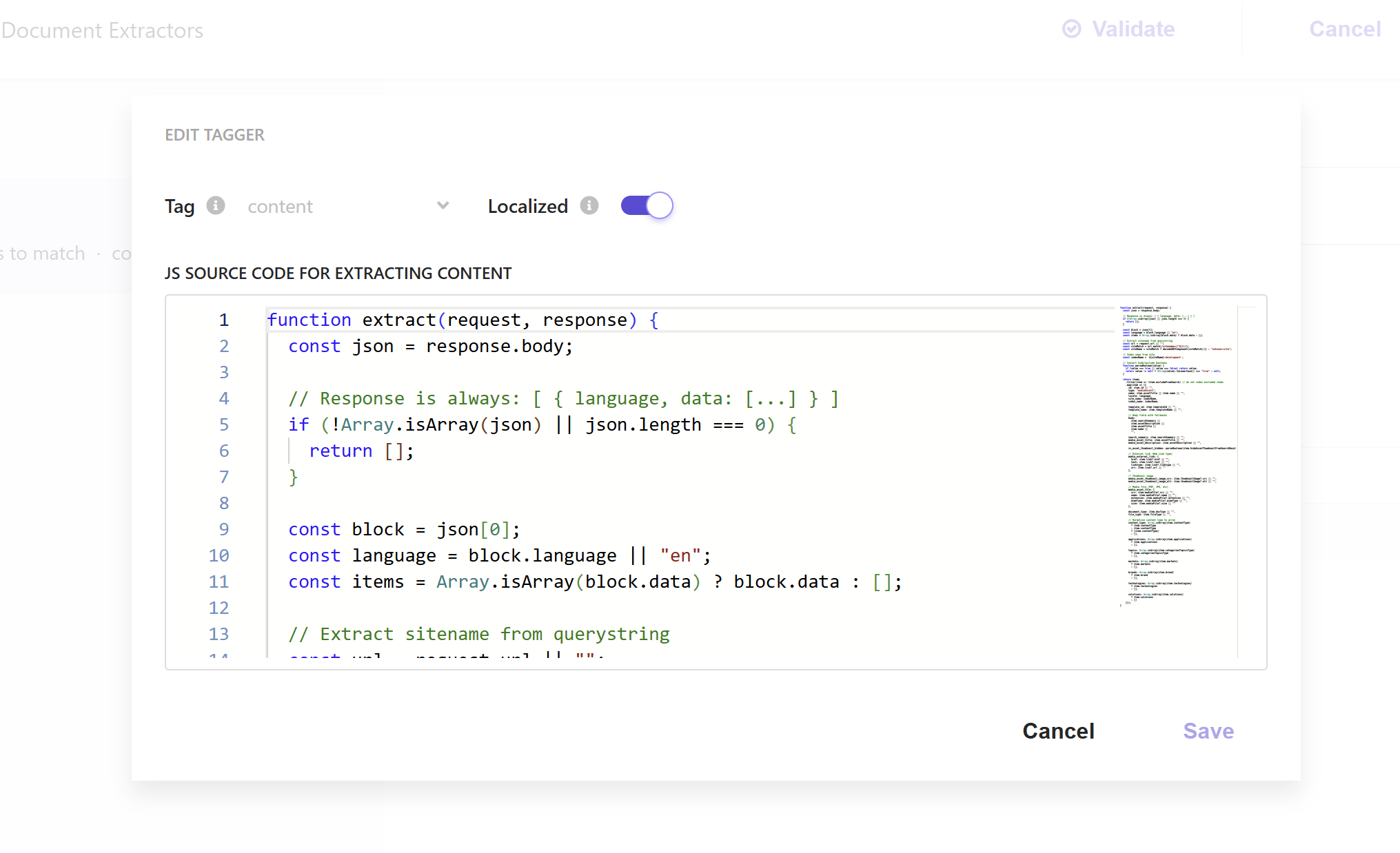
Here is an example that extracts common content attributes:
function extract(request, response) {
    const items = [];

    if (!response?.body || !Array.isArray(response.body) || response.body.length === 0) {
        return items;
    }

    const block = response.body[0];
    const data = block.data || [];
    const siteName = block.siteName || "unknown-site";

    data.forEach(item => {
        items.push({
            title: item.title || item.name || "",
            description: item.description || item.summary || "",
            url: item.url || item.link || "",
            site: siteName,
            content: item.content || item.body || "",
            publishedDate: item.publishedDate || item.date || "",
            image: item.image || item.thumbnail || ""
        });
    });

    return items;
}
This extractor processes each item in your API response and maps it to the index structure. The site name is extracted from the response block and included with every document. You will need this for filtering and organizing content by site in your search results.
Publish and Recrawl
After you configure all the extractors, do not forget to publish your API crawler configuration. After it is published, trigger a recrawl to start indexing your content. The crawler will process all your sites and languages according to your trigger configuration, handle pagination automatically through the request extractor, and index all documents using the document extractor.
Monitor Job Run
You can monitor the crawler job execution through the Sitecore Search Analytics tab. Go to Analytics, then Sources, and select Overview.
In the source details, you will see a list of your latest crawler runs. Click on your newly created API crawler to see all the latest run jobs and their status. You will see if they are queued, in progress, finished, or processed.
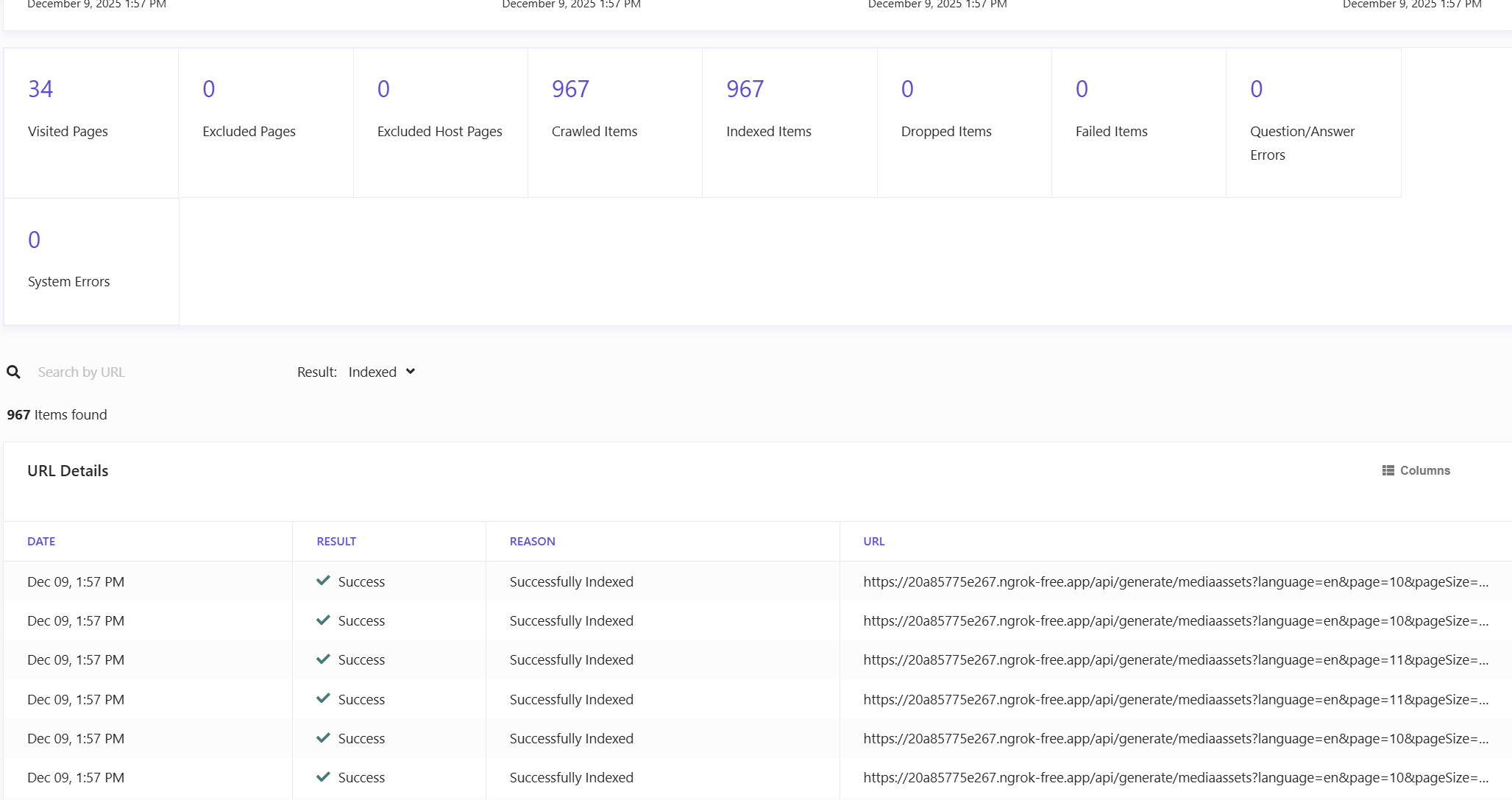
Click on the latest job to see how Sitecore Search generated and crawled all your URLs. This view allows you to verify that everything is working correctly. You will see the site names and page numbers that were crawled, which confirms that your pagination logic is working and all your sites and languages are being processed.